Products: Something New For Your Google My Business Strategy
- Home
- Knowledge Sharing
- Products: Something New For Your Google My Business Strategy
Google My Business has been around since 2014 and has grown into a handy tool for many business owners. Designed as a way to provide business owners with more control over what company information displays in search engine results when users type in the exact company name. That includes the name as it appears on Google Maps and also in the local pack that pops up at the top of the search results.
The range of features has increased over time, making this platform even more valuable to all sorts of users. With the last year, Google began experimenting with a new feature that's capturing a lot of attention: Products.
If you haven't heard much about Products just yet, don't feel alone. Many business owners are still in the process of discovering this resource and how to put it to good use. Whether you have goods or services to sell , it pays to learn how to utilize this new offering to best advantage. Here is some basic information that you can put to good use.
Some Background on Google My Business - Products
The idea of adding a Products tab to Google My Business has been around for some time. The beta release took place in the autumn of 2018. Using a soft rollout process, Google made the feature available to a limited number of participants. The decision was also made to limit the use to mobile display initially. As with any beta testing, the goal was to work through any operational and display issues that the first group of participants encountered. As of the middle of 2019, this feature is now live for all Google My Business users in most parts of the world.
How Does Products Help in Terms of Google Searches?
You already know that Google My Business is designed to teach Google more about your company and use that data to match your operation with searches conducted by search engine users. Products helps to kick up that aspect by a notch. Along with information about your company, the addition of Products means users have the opportunity to see what your product line includes.
How Does the Product Display Work?

Products is based on the creation of what's called Collections. Think of Collections as nothing more than a group of products that have some relevance to one another. Within each Collection, you may include several different products along with basic information about each one.
Google recommends establishing a minimum of three Collections and including at least five products in each one. Once that's done, anyone who searches for your company by name will have the opportunity to click on the Products tab, see the name of each Collection appear in a menu, and be able to click on the Collection to see what products are included.
Creating Collections and adding products within each collection is not difficult. You do want to be as precise as possible with each Collection name. Put yourself in the shoes of your potential client and think of what sort of Collection name would be descriptive and ensure the user understood what would be found under that name.
You also want to be precise with the product names and the information that you provide. Images can be added, which may work well for some business owners. You can also create lists related to the features found on each product.
Remember that you have 58 characters for the Collection name. There are a thousand characters available for describing the Collection itself. You'll have spaces to add images of each product, the product name, unit price, and another thousand characters for each product description. When you're happy with the Collection details and the information about each product, click on Add and move on to the next product you want to include. Repeat this process with each Collection.
Don't forget that you have to include at least one product in each Collection. Without that one product, the system will not recognize that Collection. Even if you're not sure how many products you want to include, use one to establish the Collection. You can always go back later and add more.
Once you create the Collections and add the products, you can make the Products tab live. Google will index the new tab and users will be able to see it with ease.
Example of How to Name Collections and Products
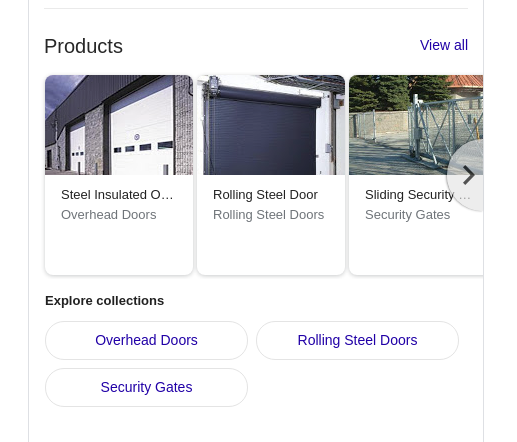
Assume that your company offers a selection of overhead doors as well as security fences. Within the new Products feature, you decide to create three collections. The first Collection is named Overhead Doors. You name the second one Rolling Steel Doors. Your third one is named Security Gates.
Within each one, you outline the product offerings related to the service. For example, the Overhead Doors Collection will commercial overhead doors and steel insulated overhead doors. Your Security Gates Collection could include a sliding security gate along with an automatic barrier gate.
With each of the products listed within a Collection, create a product description that's informational and concise. Make the text easy for the reader to scan. Do point out features that are likely to resonate with the type of client you want to attract.
What Sort of Products Can You Display?
There is virtually no limit on they type of goods and services that you can offer using the Products feature. There are some provisions that you will have to keep in mind. First, you can only display products that are legal to sell in your jurisdiction. There are limitations in terms of using this approach to sell or feature certain types of adult-oriented materials. If you're in doubt, it's best to contact Google directly and find out if your product line would be subject to any type of censure.
Is It Difficult to Update Your Product Collections and Displays?
Like the other information you choose to share via Google My Business, there is complete control over your Collections and the products that are included in each one. If you decide to discontinue a product, log into your account, go to the Collection where the product is housed, and delete it.
The same goes for adding new products to a Collection. Navigate to the appropriate Collection, upload an image of that new product and provide the name, unit price, and a description. Once you like the details for that new product, click on Add.
Can You Reorganize the Collections?
You aren't stuck with the Collections displaying in the order that you create them. Once you have at least two Collections activated, it's possible to click on the column of three dots found on the right-hand side of the display. You'll have the options to select a Collection and move it up, move it down, move it all the way to the top of the list, or to the bottom.
Within each Collection, you can also rearrange the order of the products to come degree. The most recent release allows you to add a product to the top of the list or to the bottom.
Can You Use This Resource for Special Deals?
Since you have control over the information about each product, it's easy to update the data and include things like product discounts or sale dates that apply. You can also alter the data on a product to note that it's a close-out item, or one that will be offered free if the buyer orders one of your other products. In this sense, the new Products tab makes is possible for you to utilize Google My Business as a way to publicize sale items right along with new offerings.
Is It Easy for Users to Find the Products Tab?
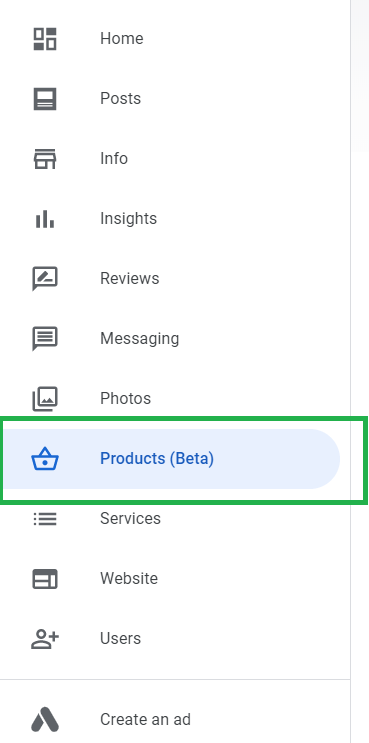
There's no need for users to scroll anywhere in order to find the Products tab. The present setup has the tab positioned to the right of the Overview and the Posts tab in the local pack. All the user has to do is click on the tab and the Collections will appear in a window or a separate browser tab, depending on the user's settings. The result is a vertical display of Collections, followed by a display of products found in each Collection.
While there's bound to be more enhancements to Products over time, there's no reason why you can't make use of this resource right now. Go to your Google My Business account and try your hand at creating a couple of Collections and adding products to each one. Remember that no one will see the Products tab until you decide to activate it. It won't take long to find all sorts of ways to use this new feature to your advantage.
Google Business profile startegy FAQs
How can Google Business Profile Products help my brand in an AI driven local search environment in 2026?
In 2026 your Products tab is often the data layer that both Google Maps and AI Overviews read when deciding which local businesses to highlight. Well structured product entries with clear names, categories and prices make it easier for generative systems to explain what you offer and when you are a good match for a query. Because AI Overviews can reduce clicks for simple informational searches, you want to be the business that still gets surfaced when users move from “what” to “where to buy”. That makes Products part of both local SEO and Generative Engine Optimization rather than just a visual showcase.
How should I decide which products or services to feature first in the Products tab?
Start by mapping the offers that drive the most profit or act as strong entry points, such as introductory services or best sellers, and prioritize those. Then look at the queries that already bring people to your site or profile and align your featured products with those intents. This keeps Products focused on items that real customers already look for instead of a random catalog dump. Over time you can expand into more niche or seasonal items once the core revenue drivers are well represented.
How does the Products feature interact with Generative Engine Optimization and LLM visibility tools?
Each product card is a small structured “fact block” that LLMs can reuse when building local recommendations or shopping suggestions. Consistent wording, up to date pricing and clean linking from Products to your landing pages make it easier for GEO and AI visibility tools to see and score your brand. When you monitor how often ChatGPT, Gemini or Perplexity mention your business for target prompts, gaps often trace back to missing or unclear product level data. Updating Products becomes one of the quickest levers to improve those AI visibility scores.
How can I optimize product descriptions in Google Business Profile without copying my website text?
Treat the Products area as a condensed, benefits first version of your full product page rather than a copy and paste. Focus on one main use case, add one or two key differentiators and keep jargon light so the text reads well in a small card and in AI summaries. You can still link to your detailed page for specifications or long form content. This creates a complementary pair of assets instead of duplicating content in two places.
What is the best way to track the impact of Products on traffic and conversions in 2026?
Use the Performance section of your Business Profile to see how many views and clicks your products generate from Search and Maps, then match that with tagged landing page URLs in your analytics platform. Over time you can compare sessions and conversions that start from a product click against those that come from your main website or other local features. If you also run an AI visibility tracker, watch for changes in citations after large product updates. This combined view shows whether improved product data is influencing both human clicks and AI driven recommendations.
How should service based businesses use Products alongside the Services section?
For services, Products works best as a “visual menu” of flagship packages, assessments or bundles, while the Services section can house your full list and detailed scope. You might feature high intent offers such as emergency callouts, audits or flat fee packages as products, each linking to a conversion focused page. The Services list then supports GEO and traditional local SEO by clarifying everything you can do. Using both together helps you appear when people search broadly and when they look for very specific solutions.
Can I automate Google Business Profile product updates through an API in 2026?
As of 2026 Google’s public Business Profile APIs focus on core location data, reviews and some performance metrics rather than full product management, so most businesses still update Products through the interface or third party tools that sync manually curated lists. That said, you can often connect your GBP data with other systems for reporting and alerts so you know when a product card is outdated. Many brands pair API based location updates with internal workflows that remind teams to refresh Products when inventory or pricing changes. This hybrid approach keeps maintenance manageable without waiting for full automation.
How do Products influence whether my business is recommended by LLMs for local intent queries?
Large language models often rely on structured local listings, reviews and product level information when suggesting options such as “best repair shop near me” or “where to buy eco friendly paint in Toronto”. If your Products tab clearly describes what you sell, uses locally relevant terms and matches what reviewers mention, it strengthens the model’s confidence that you fit the query. AI search tools and GEO platforms repeatedly point to accurate listings and consistent product data as key inputs for local recommendations. That means Products is one of the signals that can move you into or out of shortlists inside AI answers.
What are common mistakes businesses make when using the Products tab in 2026?
A frequent issue is treating Products as a static catalog that never changes, even when stock, pricing or focus has shifted. Others upload only generic images or vague descriptions that do not match how customers search, which limits both click through rates and GEO impact. Some brands also cram every SKU into Products, making it hard for users and AI systems to see what is truly important. A curated, well maintained set of collections usually performs better than an unfiltered dump of everything you sell.
How can Products support campaigns that target both classic search and AI Overviews in 2026?
When you launch a promotion around a core offer, you can coordinate updates across your website, Business Profile Products and on site or off site content that AI engines frequently cite. Structured, time bound product descriptions in GBP make it easier for Google to reference that offer in AI Overviews when the query has clear local or transactional intent. At the same time, your landing page and broader content can be tuned for GEO so that LLMs beyond Google, such as ChatGPT or Claude, pick up the same messaging. This joined up approach lets a single campaign echo through organic listings, Maps and AI driven answers together.